
YAVACADO turned our technical equipment catalog into a clear, professional website that our team can manage. The CMS and CRM integration make it easier to present products, process enquiries, and support clinics from the first contact.
5
min to read
Figma Weave Tools: A Practical Trial for Webflow Website Illustrations
About tools
Web design
Explore all
September 17, 2026
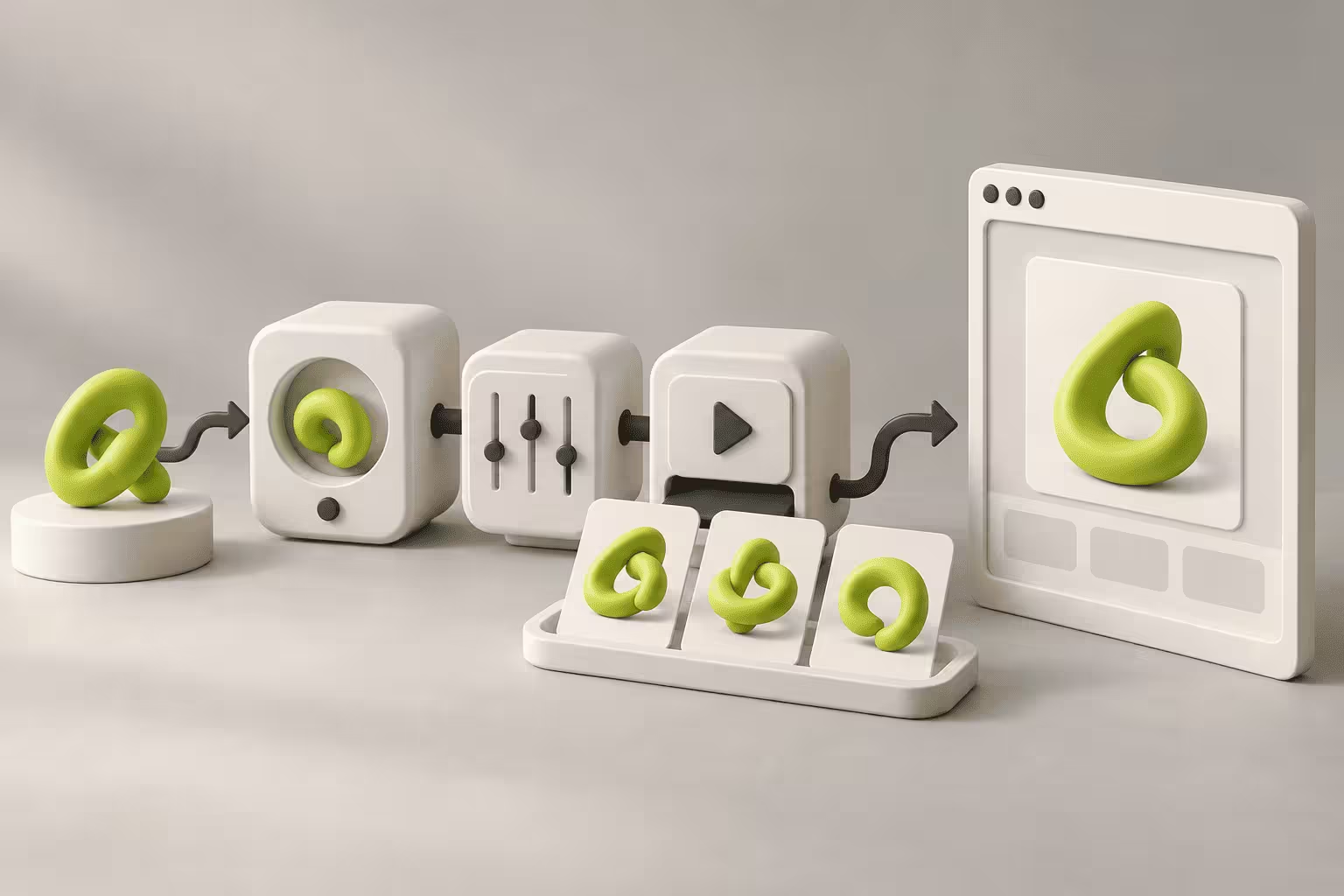
An ivory creative workflow produces matching lime illustrations, with one selected for a website.
In this article
Figma’s new Community publishing for Weave tools is worth exploring if your team repeatedly makes similar website illustrations. Start with one asset family and measure how much work remains after generation. A reusable creative workflow can help produce a consistent series, but your team still needs to approve the images and prepare them for the website.
Reviewed 17 September 2026. This is a decision guide based on official documentation, not a hands-on performance test.
What changed, and what is still in beta?
On 16 September, Figma announced that creators can publish Weave tools to the Figma Community. These tools package generative workflows for other people to use. The announcement distinguishes publishing from use inside Figma Design: Community publishing supports different output types, while tools available within Design are limited to image and vector generation. Read Figma’s release notes.
According to Figma’s current help documentation, using a Weave tool in Design requires a Professional, Organization or Enterprise plan and edit access to the file. Tools in Design remain in open beta without consuming Figma AI credits. Figma says credit consumption will begin at general availability, but its credit update FAQ does not yet give an exact transition date. Check these conditions again before budgeting an ongoing process.
Choose a repeating task, not a tool collection
For a Webflow marketing site, the useful question is whether a tool can produce assets that fit an established visual direction. This proposed workflow treats Figma as the creative workspace and Webflow as the publishing destination. It does not assume an automatic connection between a Community tool and your CMS.
Consider an illustrative example: a consultancy needs six service-page illustrations. Each should use the same materials, palette and camera angle, while explaining a different service. Test one simple subject, one detailed subject and one awkward subject before preparing the full set. Choosing only the easiest example tells you little about the work that will arrive next month.
Write down what must stay constant and what may change. “Warm grey background, rounded lime objects, generous margins” is a useful visual brief. “Make it on-brand” leaves too much interpretation to each run. Keep the brief beside the selected tool so another team member can repeat the process.
Inspect what the tool actually does
Figma says a Weave tool’s underlying workflow can be opened, duplicated and adapted in Figma Weave. This is a separate product and account context. That visibility is useful when deciding whether a Community tool fits your process. See the workflow documentation.
Before adopting a tool, identify its required inputs, the settings your editor must choose and the parts your team would maintain. Use approved reference material for the trial. A tool that produces a striking sample may still require substantial correction on ordinary subjects. Keep the original input and the approved result together so future changes can be compared.
Measure the finished asset, not the first generation
For the three trial subjects, record generation attempts, editing time, rejected outputs and the reason for rejection. Then place the approved candidates into the actual website layout. An image may look coherent on a design canvas but lose its subject in a narrow service card.
- Consistency: do the images belong to the same series without becoming indistinguishable?
- Meaning: can a reviewer connect each image to the intended service?
- Preparation: how much correction and export work is needed before upload?
- Repeatability: can another editor produce an acceptable addition using the recorded brief?
Compare that complete process with your current method. If a designer still has to rebuild most outputs, a reusable Figma component or a commissioned illustration set may be more practical. For a single occasional image, setting up and maintaining a workflow may offer little benefit.
Keep illustration separate from evidence
Generated assets are suitable candidates for abstract editorial and service illustrations. They should not quietly replace a real product screenshot, customer photograph or documented project result. Where the reader needs to see what was actually delivered, use the actual material.
For an example of the implementation stage, The Fiscal Agency project involved translating supplied Figma pages into a responsive Webflow build. That demonstrates the design-to-website work involved; it is not evidence that Weave was used on the project.
Before uploading approved illustrations, choose their website dimensions, filenames and text alternatives. Our guide to website images, alt text and crops covers that publishing step in more detail.
A sensible next step
Run a small trial when your team already works in Figma and regularly needs a coherent asset series. Agree on acceptance criteria before generating, review three varied subjects, and decide whether the process is easier to repeat than your current one. Keep the budget provisional while the beta conditions are changing.
If your team needs help connecting a visual direction to real Webflow pages, share the website and the asset family you want to improve. That gives the discussion a concrete starting point.
FAQs
Should we publish a custom Weave tool or use an existing Community tool?
What should we save so another editor can reproduce an illustration series?
How can we decide whether the workflow is worth keeping?
Campaign Landing Pages: Keep the Promise from Ad to Enquiry
12/8/25
4
min to read
Webflow Integrations: Plan What Happens When a Handoff Fails
3/16/26
4
min to read
How to Improve a Low-Traffic Website Without Guessing at A/B Tests
1/26/26
4
min to read
Figma to Webflow: A Reliable Handoff and Import Workflow
1/14/24
4
min to read
Relevant project
Figma to Webflow Build for a Fiscal Advisory Firm
Tech
En The Fiscal Agency nos convertimos en tus consejeros y te ayudamos a rediseñar tu estructura fiscal y operativa para que se adapte a tu estilo de vida soñado.
The Fiscal Agency


Testimonials
What our clients say
A web design agency that cares about you and your brand, no matter the size or what industry your business is in.


YAVACADO turned a complex booking process into one clear platform. Our team can manage tours and content in Webflow, while parents can book and pay securely through WayForPay. The result is easy to operate and built around the needs of the Ukrainian market.

The website captures the premium feel of our brand perfectly. From the design to the multilingual functionality and payment integration, every detail was delivered to a very high standard.

Excellent implementation of our Figma design in Webflow. The final website feels fast, polished, and exactly aligned with the premium fintech experience we wanted.
.png)
The funnel feels significantly more polished than the original concepts and was delivered in a format our internal team could immediately continue working with. Smooth process and excellent execution.

Working with YAVACADO was a fantastic experience. They understood both the technical requirements and the business goals, delivering a fast, polished website that's easy to manage and built to generate qualified leads.

Impressive speed and quality. The landing page was delivered in just hours and looks clean, professional, and ready to use.

The turnaround was incredibly fast, and the result looks clean and professional. The site reflects our firm perfectly and was delivered exactly on time.